













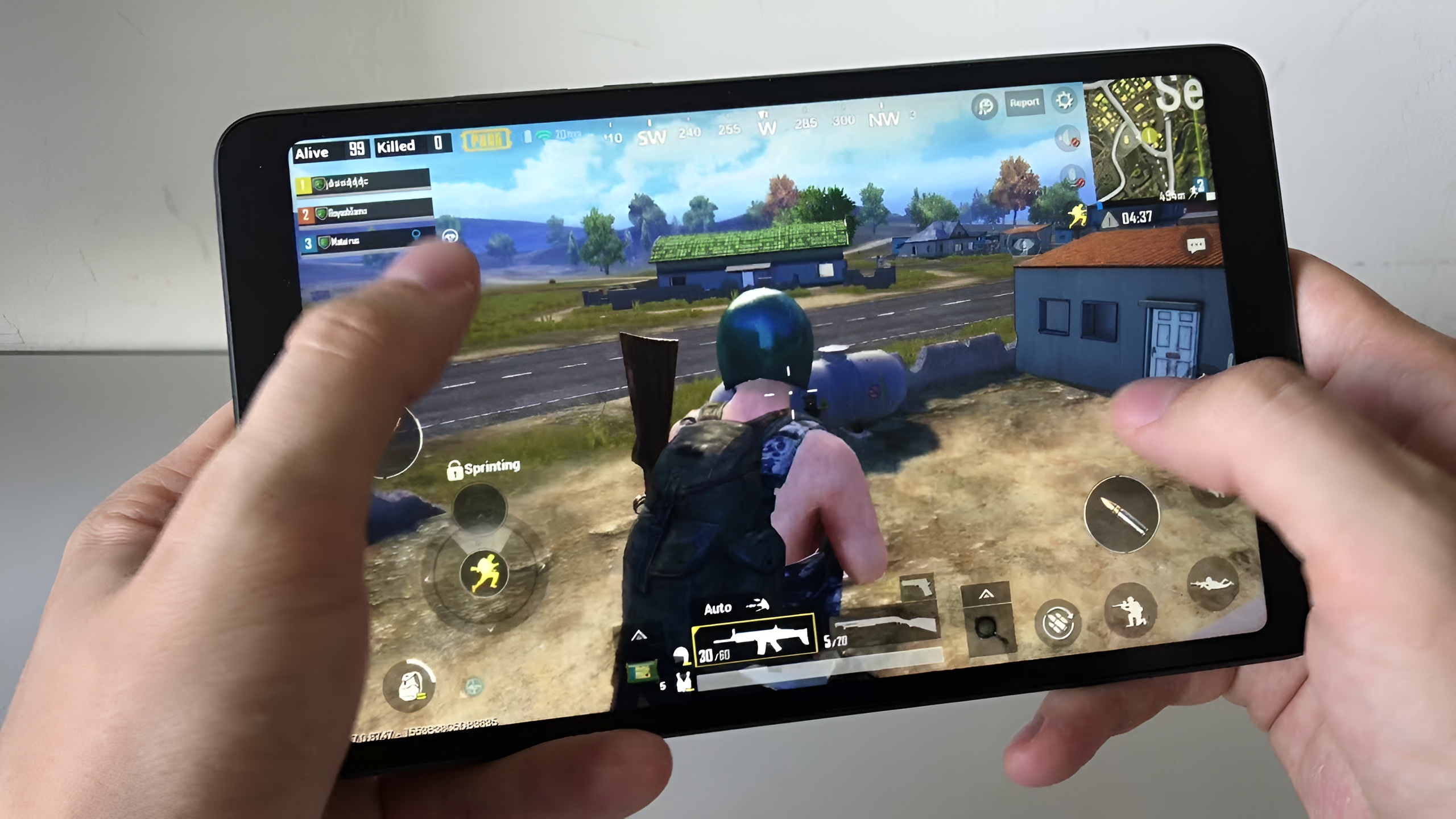
Gaming on your Android tablet should feel smooth and exciting. Nothing ruins a great game faster than choppy graphics and slow frame rates. Frames per second (FPS) is the speed at which your games run more smoothly. Getting higher FPS means a better gaming experience. Your favorite battle royale or racing game needs good FPS to work properly.
The majority of tablet users believe that they must have high-end gadgets to experience lag-free gaming. This is a misconception. A few simple tricks can enhance your gaming performance. These methods are applicable to nearly every Android-based tablet. No special knowledge or elaborate gadgets are required. Simply use these tried and true techniques and see your games run as they never have before.
Let’s talk in detail to understand better!|
Strategy 1: Clean Up Your Tablet Storage
Your tablet storage affects gaming speed more than you think. Games slow down when your device runs out of space. The best Android tablet for gaming maintains high-speed UFS storage and at least 20–30% free space so your games load faster, render smoother, and avoid mid-match stutters.
Full storage makes your tablet work harder. The system needs free space to run games smoothly. When storage fills up, your device struggles to load game files quickly. This creates lag and stuttering during gameplay.
- Start by checking your current storage status.
- Go to Settings and tap on Storage.
- You’ll see exactly how much space remains available.
Delete apps you never use anymore. Old photos and videos take up massive amounts of space. Move them to cloud storage or your computer. Clear the cache from your apps regularly. Cache files pile up over time and waste valuable storage.
As per a report, the global gaming tablet market is expected to surpass $179 million by 2032, showing a strong surge in demand for faster, storage-optimized devices.
Strategy 2: Close Background Apps Before Gaming
Background apps eat up your tablet’s power. They steal resources that your games need.
Every app running in the background uses RAM and processing power. Your game can’t access these resources when other apps hog them.
- To access your recent applications menu, press the button with either a square or three lines.
- Then, remove all the apps that you are not currently using by swiping them away.
- Keep in mind that some applications may automatically restart themselves, so take a look again after a while.
Turn off auto-sync for apps during gaming sessions. Sync processes consume resources without you knowing. Disable notifications temporarily while playing games. Notification checks happen constantly in the background.
Use your tablet’s built-in game mode if available. Game mode automatically closes unnecessary background processes. This frees up maximum resources for your gaming needs.
Strategy 3: Lower Graphics Settings Inside Games
Graphics settings in games have a direct impact on your frames per second (FPS). The impact of high graphics settings is doubled; they are attractive, but at the same time, degrade the performance.
- Reduce shadow quality first because shadows demand lots of processing power.
- Turn off anti-aliasing if the option exists.
- Lower texture quality to medium instead of high. Disable motion blur and particle effects.
Many games have an FPS counter you can enable. Watch this counter while adjusting settings. Try to reach 30 FPS minimum or 60 FPS for competitive games.
Test different combinations of settings. Sometimes reducing one specific setting makes a huge difference.
Strategy 4: Keep Your Tablet Cool During Gaming
Heat kills gaming performance fast. Hot tablets automatically slow down to prevent damage. Gaming makes your processor work hard. Hard work creates heat. When your tablet gets too hot, it enters thermal throttling mode. This means it intentionally reduces performance to cool down.
- Never game while your tablet charges.
- Charging creates extra heat that combines with gaming heat.
- Remove your tablet case before long gaming sessions. Cases trap heat against the device.
Watch for warning signs of overheating. Games start lagging suddenly. Your screen might dim automatically. The back of your tablet feels very hot to the touch. Stop gaming immediately if you notice these signs.
Strategy 5: Update Your Games and Operating System
Updates bring performance improvements. Developers fix bugs and optimize code with each update.
Old game versions often have performance issues. Developers release updates specifically to improve FPS. These updates also fix crashes and glitches. Your Android system updates work the same way.
- Enable automatic updates in the Google Play Store.
- Open the Play Store and tap your profile icon.
- Go to Settings and select Network Preferences.
- Choose Auto-update apps over Wi-Fi only.
- Check for system updates monthly.
- Go to Settings and find System or About Tablet.
- Tap Software Update or System Updates.
- Install any available updates right away.
Restart your tablet after installing updates. This ensures all new code loads properly.
Strategy 6: Disable Animations and Visual Effects
Android animations look nice, but waste processing power. Your games need that power instead.
Your tablet plays little animations every time you open apps or switch screens. These animations consume resources constantly. Removing them speeds up your entire system.
- First, you need to turn on the Developer Options on your tablet.
- Navigate to Settings and select About Tablet.
- Locate the Build Number and tap on it rapidly seven times.
- A message will pop up saying that you are a developer now.
Go back to Settings and find Developer Options. Scroll down to the Drawing section. You’ll see three animation settings there.
Set the Window animation scale to Animation off. Set the Transition animation scale to Animation off. Set Animator duration scale to Animation off.
Conclusion
The best Android tablet for gaming delivers amazing gaming performance with the utmost speeds. These six strategies work together to maximize your FPS. Clean storage gives your games breathing room. Closed background apps free up critical resources. Lower graphics settings boost frame rates immediately. Cool tablets maintain peak performance longer. Regular updates bring important optimizations.
You don’t need to buy a new tablet or spend any money. Start with Strategy 1 today and work through each method. Your games will run smoother than ever before. Better FPS means more wins and more fun. Take action now and transform your gaming experience completely.